Showing posts with label SOX. Show all posts

Wednesday, April 30, 2025

Purchase Price Variance (PPV) Account Usage in Dynamics 365 Finance and Operations (D365FO)


PURCHASE PRICE VARIANCE (PPV) ACCOUNT USAGE IN DYNAMICS 365 FINANCE AND OPERATIONS (D365FO)

CONTENT

Introduction
What is purchase price variance (PPV)?
Why PPV matters for SOX compliance?
Control activities
Key setup for PPV accounting
Demo
How to reduce PPV account balance?
Conclusion

INTRODUCTION

In a SOX-compliant environment, accuracy in financial reporting is critical. One often-overlooked area that can introduce variances—and therefore risk—is the purchase price variance (PPV) accounting setup in Dynamics 365 Finance and Operations (D365FO). Although PPV is typically associated with manufacturing and procurement cost management, its impact extends into key financial control objectives around inventory valuation, cost of goods sold, and ultimately, financial statement accuracy. This article explains how PPV accounts are used in D365FO and highlights important considerations for SOX compliance.

WHAT IS PURCHASE PRICE VARIANCE (PPV)?

Purchase Price Variance represents the difference between the standard cost (or expected cost) of an item and the actual cost recorded when the vendor invoice is processed.

In D365FO, the variance is automatically posted to the PPV account when:

  • A product receipt is posted (if accrued based on receipt)
  • A vendor invoice is matched and posted at a different price than the product receipt or purchase order price

Without proper setup and monitoring, PPV balances can accumulate and distort both inventory valuation and cost recognition, leading to misstatements.

WHY PPV MATTERS FOR SOX COMPLIANCE

Let’s say you plan to buy a tool for $100 (that’s your standard price). But when you actually go to the store, it costs $102. That extra $2 difference is called a purchase price variance.

Big companies do the same thing — they expect to pay a certain price for materials or supplies, but the real price can be higher or lower. If they don’t keep track of these differences (the PPV), they might accidentally show the wrong numbers in their financial reports.

From a SOX perspective, improper handling of PPV can create material misstatements in key accounts such as:

  • Inventory
  • Accounts Payable
  • Cost of Goods Sold
  • Expense Accounts

Controls around PPV are often tested under Financial Close and Reporting and Inventory Management process areas.

CONTROL ACTIVITIES

To ensure PPV is managed appropriately, organizations should implement the following controls:

  • PPV Reconciliation: Perform monthly reconciliation of PPV balances, investigating significant fluctuations.
  • Standard Cost Governance: Establish a formal process to review and approve standard cost updates.
  • Three-Way Match Enforcement: Ensure three-way matching is mandatory for purchase order processing to minimize undetected variances. This works if there is a price difference between PO and Invoice.
  • Threshold Review: D365FO currently doesn’t offer this functionality, but an ideal control would allow you to set PPV tolerance thresholds that trigger a management review when exceeded. I’ve submitted this idea to Microsoft. Please support it by giving it a VOTE HERE❕

Failure to monitor and reconcile PPV accounts timely can result in audit findings related to inventory misstatement or inadequate expense recognition.

KEY SETUP FOR PPV ACCOUNTING

To manage PPV properly, D365FO requires the following configurations:

  • Item Model Group: Items must belong to an item model group using the Standard cost inventory model.

Below image shows that item's model group name is 'STD'.


The setup of item model group 'STD'  shows that inventory model is 'Standard cost'.


  • Inventory Posting Profile: Within the inventory posting setup, a designated PPV account must be defined under the 'Standard cost variance' tab's 'Purchase price variance' field.

Below image shows that 'Purchase price variance' is defined as '510310'.


  • Three-Way Matching Configuration: Matching between purchase order, product receipt, and vendor invoice ensures variances are systematically caught and recorded.
Accounts payable >> Inquiries and reports >> Invoice >> Invoice history and matching details.


Let's see that in action!

DEMO

Item's Inventory Model

Let's make sure that our demo item's inventory model is Standard cost.


Item's Cost

Let's take a look at demo item's standard cost.

The expected purchase cost aka standard cost is $100. The difference between $100 and any other values will be kept in the PPV account.


The expected purchase cost aka standard cost is $100. The difference between $100 and any other values will be kept in the PPV account.


Purchase Order and Product Receipt

Let's now create a purchase order and put unit price $102.


Fast forward, After product receipt posting, generated voucher would look like below

Please note that unexpected $2 is kept in PPV (Purchase price variance) account by the system automatically. Received but invoiced total amount is $102.

Vendor Invoice

Let's register the vendor invoice and see the posted entry's voucher.


Note that invoice voucher doesn't use the PPV account since the variance already was captured on the product receipt stage.


Let's take a look at the PPV account transactions to see if $2 difference is there.

Yes, the difference is in this account.


Should You Be Concerned?

Yes — a continuously growing PPV account balance is a red flag, especially in SOX-compliant environments. It signals that:

Your standard costs do not reflect reality,

You're accumulating unreviewed variances,

You may be misstating your inventory, COGS, or expense accounts.

Unaddressed, this could lead to audit findings or material financial misstatements.

HOW TO REDUCE THE PPV ACCOUNT BALANCE

1. Reclassify Old or Immaterial PPV Balances

Work with finance to post a manual journal entry to remove (or reclassify) the balance from the PPV account if they are deemed immaterial.

"Immaterial" in accounting means the amount is too small to influence decisions made by someone reading the financial statements.

Transfer them to an appropriate expense account after analysis.

2. Update Standard Costs

Review items with high PPV activity.

Update standard cost records (via Costing version) to align with recent actual purchase prices.

3. Correct Purchase Price Issues

Investigate frequently used vendors or items causing large variances.

Fix missing or incorrect purchase prices or trade agreements.

4. Enforce Invoice Matching & Tolerance Controls

Use three-way matching and enforce price variance tolerance thresholds.

This is useful when you have a price difference between PO and Invoice.

CONCLUSION

PPV might seem like a small detail in day-to-day operations, but it can have a real impact on your financial statements, especially if you're working in a SOX-regulated environment. In this article, we walked through how PPV works in D365FO, what setups are required, why it's important to monitor, and how variances show up in the system during receipt and invoicing. If the PPV account balance keeps growing, it’s worth to investigate since unreviewed variances could lead to bigger problems later.

Monday, April 7, 2025

User & Security Role Assignments via Data Management in Dynamics 365 Finance and Operations


USER & SECURITY ROLE ASSINGMENTS VIA DATA MANAGEMENT IN DYNAMICS 365 FINANCE AND OPERATIONS

CONTENT

Introduction
The challenge of scale
Why use data management?
Demo
Conclusion

INTRODUCTION

Role assignment can be a cumbersome and time-consuming process in Dynamics 365 Finance and Operations (D365FO). Identifying the appropriate future-state security roles for business users, and then ensuring those roles are correctly assigned, often involves multiple teams and a deep understanding of both business processes and security architecture. Without a structured approach, this can easily become an overwhelming task—especially during large-scale implementations, reorganizations, or security clean-up efforts.

THE CHALLENGE OF SCALE

As the number of users in the system grows, so does the complexity of managing their security role assignments. In environments with hundreds—or even thousands—of users, manually assigning or updating roles becomes highly inefficient and error-prone. It's not just the volume of users that creates difficulty, but also the variety of roles and the need to reflect organizational changes quickly and accurately.

Keeping track of which users need which roles, ensuring Segregation of Duties (SoD) compliance, and maintaining consistent role structures across business units requires a scalable solution. Relying solely on the user interface to manage role assignments simply doesn't scale well.

WHY USE DATA MANAGEMENT?

Fortunately, D365FO provides a powerful alternative through its Data Management workspace. This workspace enables administrators to manage user and security role assignments in bulk using import/export functionality. It offers a faster, more consistent way to perform updates, which is critical for both initial setup and ongoing maintenance.

The process involves a few key steps:

Prepare the Data File: Create an Excel or CSV file that includes the required fields—typically the user ID and the associated security role(s). This document serves as your template for import.

1. Upload Through Data Management: Use the "Security user role" entity within the Data Management workspace to upload the prepared file. The system processes the file and assigns roles to users based on the contents.

2. It's a time consuming process. There has to be an easy way to upload user & role assignments. Data management workspace is an excellent fit for that. First, a user & security role assignment file has to be prepared. Next step, Prepared document should be uploaded into D365FO.

This method is not only fast but also offers flexibility. For example, you can choose to delete existing role assignments before importing new ones, which is helpful during role restructuring or system refreshes. It also helps reduce manual errors and increases consistency, especially when dealing with repeatable processes or multiple environments (such as test, UAT, and production).

Benefits

  • Efficiency: Assign roles to hundreds of users in a matter of minutes.
  • Consistency: Reduce the risk of manual entry errors.
  • Scalability: Easily handle role assignments in growing or dynamic organizations.
  • Clean-Up Support: Replace outdated role assignments with updated ones using delete and import options.
  • Audit Readiness: Maintain traceable and auditable documentation of role changes through import files.

By leveraging the Data Management workspace, organizations can dramatically simplify and accelerate the user role assignment process, making it a sustainable part of their overall security management strategy in D365FO.

DEMO

Intro sentence here.

1. Preparing Guide File

Navigate to Data Management workspace.

System administration >> Workspaces >> Data management.


Create a new export project and use data entity Security user role association.

Select Excel as the source data format.


Click Export.

Find the project in the job history.

Click Execution details.

Once the export job completes, locate the project in Job history, click on Execution details, and Download file.


Template contains the following columns:

  • USERID: D365FO user ID.
  • SECURITYROLEIDENTIFIER: Security role system name.
  • ASSIGNMENTMODE: Manual or automatic role assignment indicator.
  • ASSIGNMENTSTATUS: Role assignment status. Disabled line disappears from the UI and role assignment is not active anymore.
  • SECURITYROLENAME: The actual role name.

2. Preparing Import File

Update the downloaded file with the future-state user and security role assignments.

Key considerations:

  • Don't forget to include service accounts.
  • Don't forget to include system administrators.
  • Ensure each role assignment is a separate line for every user.

3. Importing User & Security Role Assignment File

Return to the Data Management workspace and create a new Import project.

Again, select the entity Security user role association, and use Excel as the source data format.


Before importing:
Set Truncate entity data parameter to Yes. This removes previous role assignments.
Set Skip staging parameter to Yes for direct import without preview.


Click Import to proceed.


Once the job completes, new role assignments will be reflected in the system.

CONCLUSION

Managing user and role assignments at scale requires a structured and efficient approach, particularly in environments where accuracy and auditability are critical. Leveraging the Data Management workspace in D365FO provides a repeatable and auditable method for mass assigning or updating security roles. By exporting current assignments, preparing a controlled future-state file, and importing with the appropriate parameters, administrators can confidently maintain security alignment across environments. This approach minimizes manual input, reduces the potential for errors, and supports governance objectives tied to compliance.

Monday, February 3, 2025

Purchase Order Re-approval in Dynamics 365 Finance and Operations


PURCHASE ORDER RE-APPROVAL IN DYNAMICS 365 FINANCE AND OPERATIONS

This article provides detailed information about purchase order re-approval process in Dynamics 365 Finance and Operations. Re-approval logic triggers additional approval process in case changing selected field values on the purchase orders.

Let's get started.

CONTENT

Introduction
Solution components
Demo
Conclusion

INTRODUCTION

The purchase order (PO) workflow is a widely used IT Application Control (ITAC) in Dynamics 365 Finance & Operations (D365FO), especially for SOX-compliant organizations. Its primary purpose is to ensure internal approval before processing purchase orders. 

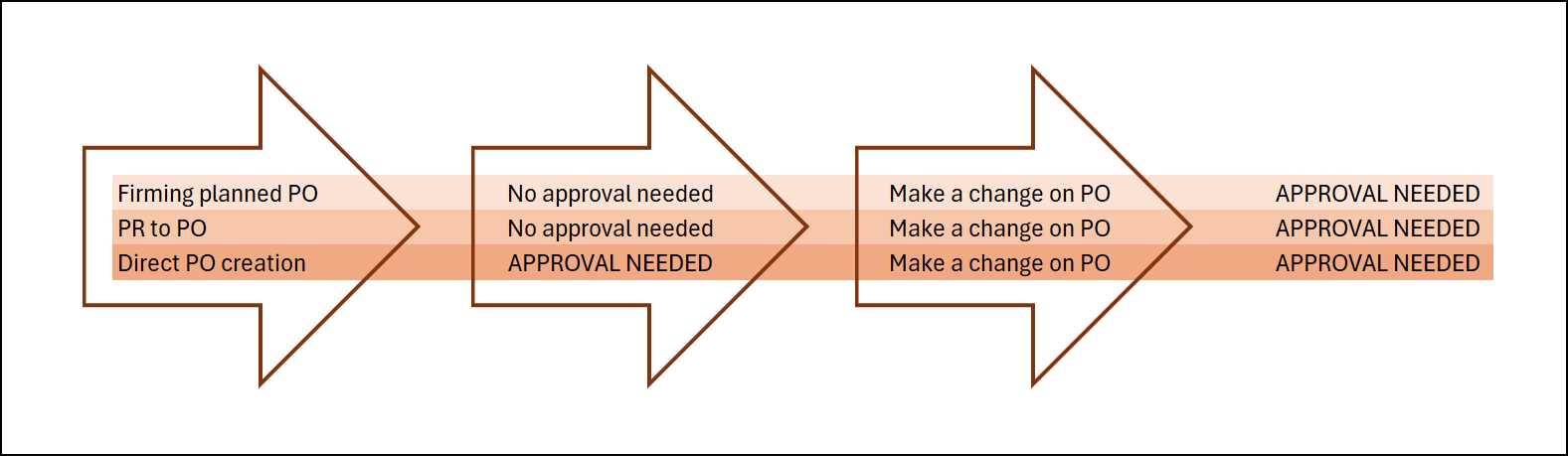
This article examines whether purchase orders must go through workflow approval when created under specific scenarios, such as:

  • Firming a planned purchase order
  • Releasing an approved purchase requisition (PR)

The answer is no. If the purchase orders are already required, additional approval is unnecessary.

Planned purchase orders are system-generated based on demand signals, reviewed, and approved before being converted into actual POs. If no further procurement team approval is needed after PO is created, then the firming process should be designed accordingly.

Purchase requisitions (PRs) must go through a workflow approval process, typically starting with a department manager and continuing through additional levels based on total cost and signing limits. If the resulting POs do not require additional approval, the PR approval process should be configured with this in mind.

However, if a created PO is touched and changed, it should be subject to a re-approval process. This article explains how to configure the system to bypass PO approval when originating from PRs or planned orders while ensuring re-approval when modifications occur.


SOLUTION COMPONENTS

Change management activation: Enable change management for POs by setting the Activate change management option on the Procurement and sourcing parameters. When change management is enabled, POs must go through an approval workflow after they've been completed.

Navigate to Procurement and sourcing >> Setup >> Procurement and sourcing parameters.


Activate the change management.


When change management is enabled, POs move through six approval statuses, from Draft to Finalized. After an order has been approved, users who want to modify it must use the Request change action. In this case, the approval status is changed back to Draft, and PO can be modified. After changes are done, PO can be submitted for re-approval. The field changes subject to re-approval is configured using a Re-approval rule for purchase orders policy on the Purchasing policies.

Purchasing policy setup: The re-approval rule within purchasing policies is an optional rule that defines the criteria for requiring re-approval when a purchase order is changed. The selected fields are evaluated in the purchase order workflow when the "Requires purchase order re-approval" condition is set up in the workflow.

Navigate to Procurement and sourcing >> Setup >> Policies >> Purchasing policies.


Select the policy and click on it.


Select 'Reapproval rule for purchase orders' under the policy rules.


Then select the most recent policy on the right side of the screen.


The next screen is the most important one. This is where re-approval triggers are configured. The example below shows that when the total amount of any line is changed, the order will be routed to the approval process.


Workflow configuration: The final and crucial step in the purchase order re-approval process is configuring the workflow itself. To ensure that re-approval is triggered when necessary, the workflow must include a conditional decision to evaluate whether changes require additional approval.

Navigate to Procurement and sourcing >> Setup >> Procurement and sourcing workflows.


You can see a very basic workflow configuration for re-approval as below.


This workflow says that:

If re-approval is not needed (reapproval = no), follow the left path. In this case, the workflow is automatically approved upon submission.

If re-approval is needed, follow the right path. This triggers the actual approval process that the system follows.


The final step in the workflow configuration is to set this workflow as the default for purchase orders.


With the necessary solution components in place, the next step is to see how these configurations work in action. In the following demo, we will walk through the purchase order re-approval process in Dynamics 365 Finance and Operations, demonstrating how change management, purchasing policies, and workflow configurations come together to enforce re-approval when necessary.

DEMO

Scenario 1: Firming a Planned Purchase Order

  • Firm a planned purchase order and confirm that no additional approval is required.
  • Modify the purchase order by changing the total price via a change request and confirm that additional approval is triggered.

Scenario 2: Converting an Approved Purchase Requisition to a Purchase Order

  • Convert an approved purchase requisition (PR) into a purchase order and confirm that no additional approval is required.
  • Modify the purchase order by changing the total price via a change request and confirm that additional approval is triggered.

Scenario 3: Creating a Purchase Order Directly

  • Create a purchase order manually and confirm that approval is required.
  • Modify the purchase order by changing the total price via a change request and confirm that additional approval is triggered.

This articles demonstrates Scenario 2 and Scenario 3.

Scenario 2: Converting an Approved Purchase Requisition to a Purchase Order

Navigate to Procurement and sourcing >> Purchase requisitions >> Approved purchase requisition processing >> Release approved purchase requisitions.


Select the PR line that will be converted to PO.

Note that PR price is $900.

Convert PR to PO.


Note that created PO is in Approved status that doesn't require PO approval.


The second part of the scenario is making a change on the order that doesn't impact pricing.

Unlock the PO by requesting a change.


Assign a warehouse to the PO header.


Submit the order for workflow approval.


Note that order is automatically approved since the requested change doesn't impact the pricing.


The workflow approval history of the order is as below:


The workflow assesses "no need for re-approval" as 'True' and completes the process automatically.


Scenario 3: Creating a Purchase Order Directly

A brand new purchase order is created and click Submit to initiate the workflow approval process.


The system evaluates the "No need for re-approval" condition. Since this is a new PO, the system determines it as 'False', meaning the approval process must be completed.


The PO routes through the designated approval hierarchy. Once all approval steps are completed, the PO status updates to "Approved.


Open the approved purchase order.

Click Request Change to modify the document.


Add a new line.

Re-submit the PO to workflow.


The workflow is triggered again and routes the PO for approval.

The PO arrives in my approval queue for review.


Upon approval, the PO status updates to "Approved" again.


Let's make a small change that doesn't impact pricing.


Since this change does not affect the item price, quantity, or financial impact, the workflow automatically completes without requiring additional approval.


Let's also change the warehouse on the PO from 11 to 12.


Since this change does not affect the item price, quantity, or financial impact, the workflow automatically completes without requiring additional approval.


CONCLUSION

In conclusion, the purchase order change workflow is a key control for SOX compliance in Dynamics 365 Finance and Operations. Properly configuring change management, purchasing policies, and workflow conditions ensures that modifications to approved POs are subject to re-approval when they impact financial or operational integrity. This structured approach helps enforce accountability, prevent unauthorized changes, and maintain an auditable procurement process while aligning with compliance requirements.

Understanding Telemetry Pricing for Dynamics 365 Finance & Operations (D365FO)

UNDERSTANDING TELEMETRY PRICING FOR DYNAMICS 365 FINANCE AND OPERATIONS (D365FO) CONTENT Introduction D365FO Telemetry Capabilities Key Pric...