Showing posts with label Dynamics 365 Finance. Show all posts

Wednesday, April 30, 2025

Purchase Price Variance (PPV) Account Usage in Dynamics 365 Finance and Operations (D365FO)


PURCHASE PRICE VARIANCE (PPV) ACCOUNT USAGE IN DYNAMICS 365 FINANCE AND OPERATIONS (D365FO)

CONTENT

Introduction
What is purchase price variance (PPV)?
Why PPV matters for SOX compliance?
Control activities
Key setup for PPV accounting
Demo
How to reduce PPV account balance?
Conclusion

INTRODUCTION

In a SOX-compliant environment, accuracy in financial reporting is critical. One often-overlooked area that can introduce variances—and therefore risk—is the purchase price variance (PPV) accounting setup in Dynamics 365 Finance and Operations (D365FO). Although PPV is typically associated with manufacturing and procurement cost management, its impact extends into key financial control objectives around inventory valuation, cost of goods sold, and ultimately, financial statement accuracy. This article explains how PPV accounts are used in D365FO and highlights important considerations for SOX compliance.

WHAT IS PURCHASE PRICE VARIANCE (PPV)?

Purchase Price Variance represents the difference between the standard cost (or expected cost) of an item and the actual cost recorded when the vendor invoice is processed.

In D365FO, the variance is automatically posted to the PPV account when:

  • A product receipt is posted (if accrued based on receipt)
  • A vendor invoice is matched and posted at a different price than the product receipt or purchase order price

Without proper setup and monitoring, PPV balances can accumulate and distort both inventory valuation and cost recognition, leading to misstatements.

WHY PPV MATTERS FOR SOX COMPLIANCE

Let’s say you plan to buy a tool for $100 (that’s your standard price). But when you actually go to the store, it costs $102. That extra $2 difference is called a purchase price variance.

Big companies do the same thing — they expect to pay a certain price for materials or supplies, but the real price can be higher or lower. If they don’t keep track of these differences (the PPV), they might accidentally show the wrong numbers in their financial reports.

From a SOX perspective, improper handling of PPV can create material misstatements in key accounts such as:

  • Inventory
  • Accounts Payable
  • Cost of Goods Sold
  • Expense Accounts

Controls around PPV are often tested under Financial Close and Reporting and Inventory Management process areas.

CONTROL ACTIVITIES

To ensure PPV is managed appropriately, organizations should implement the following controls:

  • PPV Reconciliation: Perform monthly reconciliation of PPV balances, investigating significant fluctuations.
  • Standard Cost Governance: Establish a formal process to review and approve standard cost updates.
  • Three-Way Match Enforcement: Ensure three-way matching is mandatory for purchase order processing to minimize undetected variances. This works if there is a price difference between PO and Invoice.
  • Threshold Review: D365FO currently doesn’t offer this functionality, but an ideal control would allow you to set PPV tolerance thresholds that trigger a management review when exceeded. I’ve submitted this idea to Microsoft. Please support it by giving it a VOTE HERE❕

Failure to monitor and reconcile PPV accounts timely can result in audit findings related to inventory misstatement or inadequate expense recognition.

KEY SETUP FOR PPV ACCOUNTING

To manage PPV properly, D365FO requires the following configurations:

  • Item Model Group: Items must belong to an item model group using the Standard cost inventory model.

Below image shows that item's model group name is 'STD'.


The setup of item model group 'STD'  shows that inventory model is 'Standard cost'.


  • Inventory Posting Profile: Within the inventory posting setup, a designated PPV account must be defined under the 'Standard cost variance' tab's 'Purchase price variance' field.

Below image shows that 'Purchase price variance' is defined as '510310'.


  • Three-Way Matching Configuration: Matching between purchase order, product receipt, and vendor invoice ensures variances are systematically caught and recorded.
Accounts payable >> Inquiries and reports >> Invoice >> Invoice history and matching details.


Let's see that in action!

DEMO

Item's Inventory Model

Let's make sure that our demo item's inventory model is Standard cost.


Item's Cost

Let's take a look at demo item's standard cost.

The expected purchase cost aka standard cost is $100. The difference between $100 and any other values will be kept in the PPV account.


The expected purchase cost aka standard cost is $100. The difference between $100 and any other values will be kept in the PPV account.


Purchase Order and Product Receipt

Let's now create a purchase order and put unit price $102.


Fast forward, After product receipt posting, generated voucher would look like below

Please note that unexpected $2 is kept in PPV (Purchase price variance) account by the system automatically. Received but invoiced total amount is $102.

Vendor Invoice

Let's register the vendor invoice and see the posted entry's voucher.


Note that invoice voucher doesn't use the PPV account since the variance already was captured on the product receipt stage.


Let's take a look at the PPV account transactions to see if $2 difference is there.

Yes, the difference is in this account.


Should You Be Concerned?

Yes — a continuously growing PPV account balance is a red flag, especially in SOX-compliant environments. It signals that:

Your standard costs do not reflect reality,

You're accumulating unreviewed variances,

You may be misstating your inventory, COGS, or expense accounts.

Unaddressed, this could lead to audit findings or material financial misstatements.

HOW TO REDUCE THE PPV ACCOUNT BALANCE

1. Reclassify Old or Immaterial PPV Balances

Work with finance to post a manual journal entry to remove (or reclassify) the balance from the PPV account if they are deemed immaterial.

"Immaterial" in accounting means the amount is too small to influence decisions made by someone reading the financial statements.

Transfer them to an appropriate expense account after analysis.

2. Update Standard Costs

Review items with high PPV activity.

Update standard cost records (via Costing version) to align with recent actual purchase prices.

3. Correct Purchase Price Issues

Investigate frequently used vendors or items causing large variances.

Fix missing or incorrect purchase prices or trade agreements.

4. Enforce Invoice Matching & Tolerance Controls

Use three-way matching and enforce price variance tolerance thresholds.

This is useful when you have a price difference between PO and Invoice.

CONCLUSION

PPV might seem like a small detail in day-to-day operations, but it can have a real impact on your financial statements, especially if you're working in a SOX-regulated environment. In this article, we walked through how PPV works in D365FO, what setups are required, why it's important to monitor, and how variances show up in the system during receipt and invoicing. If the PPV account balance keeps growing, it’s worth to investigate since unreviewed variances could lead to bigger problems later.

Monday, December 16, 2024

Understanding Audit Trail and Audit Workbench in Dynamics 365 Finance and Operations


UNDERSTANDING AUDIT TRAIL AND AUDIT WORKBENCH IN DYNAMICS 365 FINANCE AND OPERATIONS

This article serves as a comprehensive discussion on the concepts of Audit Workbench and Audit Trail in Dynamics 365 Finance and Operations. We will dive deeper into the specifics in two functionalities: 

▶️ Audit Trail
▶️ Audit Workbench

This article aims to equip you with the knowledge and tools to effectively leverage these functionalities for improved governance and compliance in Dynamics 365 Finance and Operations.

Let's get started.

CONTENT

Introduction
Audit Trail
Audit Workbench
Key Differences
Conclusion

Introduction

Audit and compliance play a crucial role in managing business processes, especially in industries that need to meet regulatory requirements like the Sarbanes-Oxley Act (SOX). In Dynamics 365 Finance and Operations (D365FO), Microsoft provides a range of tools to support businesses in achieving these goals. Two such tools, the Audit Trail and Audit Workbench, are often used for tracking and managing compliance-related activities, but their functions and purposes are quite distinct.

The Audit Trail focuses on tracking changes to key data, enabling you to maintain a record of who changed what and when—an essential feature for organizations that need detailed data accountability. On the other hand, the Audit Workbench is designed for a broader approach, allowing businesses to define and monitor specific audit processes, such as reviewing user activity or evaluating system configurations against predefined compliance standards.

This article dives into the details of these two tools, explaining how they work, their individual strengths, and the scenarios where they are most useful. By the end, you'll have a better understanding of how the Audit Trail and Audit Workbench can be leveraged to support your organization's compliance strategy. Whether you're new to these features or looking to enhance your use of D365FO for regulatory purposes, this guide aims to provide clarity and practical insights.

Audit Trail

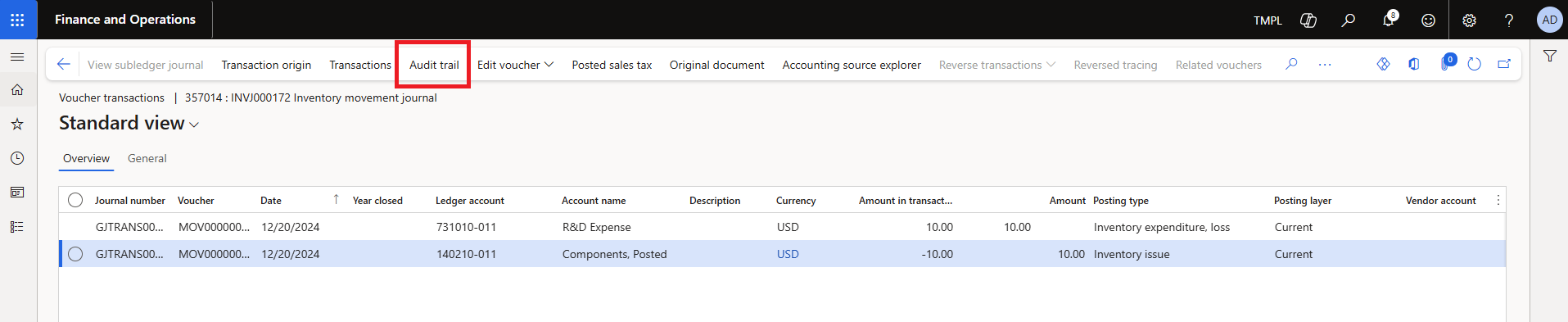
In Dynamics 365 Finance and Operations (D365FO), the Audit Trail button on vouchers provides detailed tracking information, such as type, description, creator, and creation date and time. This feature supports regulatory compliance, including SOX, by maintaining a comprehensive record of changes for audit purposes.

The Audit Trail function, accessible from the Voucher transaction inquiry page, retrieves financial transaction entries posted to the general ledger. It opens the Audit Trail Inquiry page, displaying details such as who posted the transaction, when it occurred, and the document type. Additionally, the creation date and time reflect when the transaction was posted. The page also allows users to view associated voucher transactions. 

Navigate to the Audit trail form using the following menu path:

General ledger >> Inquiries and reports >> Audit trail


The form displays all financial postings. Select the desired record and click Voucher transactions to view the original voucher details.


This button takes you to original voucher as shown below:


Investigating a user who created a voucher: If you're viewing a voucher and want to investigate who created it, click the Audit trail button.


The system will take you to the Audit Trail form, where you can see details of the posted transaction, including:
  • Transaction type
  • Date of posting
  • User who posted the transaction

While the Audit Trail provides detailed insights into individual transactions and their origin, the Audit Workbench in D365FO offers a centralized platform to manage, review, and analyze audit policies and rule violations across the system, enabling a broader scope of compliance and monitoring.

Audit Workbench

The Audit Workbench in Dynamics 365 Finance and Operations (D365FO) provides organizations with a centralized framework to monitor, review, and analyze compliance-related activities. Its purpose is to help users manage audit policies, track potential violations, and ensure transactions align with internal controls and regulatory requirements.

Key Functionalities

➡️ Audit Policy Configuration: Users can configure audit policies to monitor specific scenarios, such as duplicate invoices, unusual transactions, or modifications to master data.

➡️ Rule Violations and Alerts: The system automatically evaluates transactional data against defined policies and flags any rule violations. Violations are consolidated in the workbench for further review, making it easier to assess the impact and determine corrective actions.

➡️ Exception Review and Follow-up: The workbench provides a structured approach to reviewing flagged exceptions. Users can document findings, assign tasks to team members, and track resolution efforts, ensuring accountability throughout the process.

➡️ Integrated Data Analysis: Audit Workbench allows users to drill down into transactional and master data directly from flagged violations, providing full visibility into the root cause.

➡️ Compliance Reporting:  The tool includes capabilities for generating reports on policy violations and exceptions, helping organizations assess trends and compliance risks. These reports can be used for internal evaluations or shared with external auditors to demonstrate adherence to regulatory standards.

Practical Use

For example, if an organization wants to ensure there are no duplicate vendor payments, the Audit Workbench can flag any cases where multiple invoices with the same reference number are processed. Users can then investigate these cases and take appropriate corrective actions, all within the same tool.

Consultant’s Perspective:

From a consultant's point of view, the Audit Workbench is a practical feature that bridges the gap between transactional data and compliance management. It is especially useful for organizations aiming to maintain SOX compliance or other regulatory requirements. By leveraging this functionality, users can standardize the audit process, reduce manual intervention, and ensure audit trails are well-documented for future reference.

This functionality is not a standalone solution but a key component that complements other D365FO features, such as security roles and financial controls. It allows organizations to embed compliance management into their day-to-day operations, making it easier to manage risks proactively.

Conclusion

Both the Audit Trail and Audit Workbench play critical roles in supporting compliance and audit objectives within D365FO. While the Audit Trail ensures comprehensive data change tracking for accountability, the Audit Workbench proactively identifies and resolves anomalies to safeguard against risks. When used together, these tools provide a robust framework for maintaining compliance, enhancing audit readiness, and meeting regulatory requirements such as SOX.

Understanding the distinction and interplay between these functionalities is essential for maximizing their value and ensuring a secure and compliant ERP environment.

Monday, December 9, 2024

Performing Segregation of Duties (SOD) Risk Analysis in Dynamics 365 Finance and Operations (D365FO) - PART 2: Using RSM's Power App (GRC Guardian)


PERFORMING SEGREGATION OF DUTIES (SOD) RISK ANALYSIS IN DYNAMICS 365 FINANCE AND OPERATIONS (D365FO)

CONTENT

Introduction
Solution Components of GRC Guardian for SOD Risk Analysis
Configuring GRC Guardian for SOD Risk Analysis
Detecting and Analyzing SOD Violations with GRC Guardian
Summary and Insights

This article series explains how to perform a Segregation of Duties (SOD) analysis using 3 different tools for Dynamics 365 Finance and Operations. The purpose is to provide various options. The entire series will consist of 3 parts, as follows:

Performing Segregation of Duties (SOD) Risk Analysis in Dynamics 365 Finance and Operations (D365FO)

PART 2: Using RSM's Power App (GRC Guardian)
PART 3: Using Fastpath

Let's get started with PART 2.

Introduction

In PART 1 of this series, we introduced the concepts of segregation of duties (SOD) risk analysis and demonstrated how to perform it using Dynamics 365 Finance and Operations (D365FO) out-of-box features. In this article, we shift our focus to RSM’s proprietary Power App, GRC Guardian, a managed service that simplifies SOD risk analysis. As part of RSM’s intellectual property, GRC Guardian enables organizations to efficiently assess and address SOD risks after a brief analysis session to identify applicable rules. My role as a consultant on Dynamics 365 Finance and Operations implementations has provided valuable insights into utilizing this innovative tool for effective risk management.

RSM's GRC Guardian is a custom application designed to assess and evaluate security risks across platforms such as Dynamics 365, SAP, Oracle, and NetSuite. It provides actionable insights to identify potential vulnerabilities in application security roles and user access efficiently.

The Power App is built with a persona-based architecture to restrict access at the ERP client and project levels. Leveraging Microsoft Azure Active Directory for authentication and access control, the application ensures robust data privacy and protection, allowing only authorized RSM employees to access specific modules.

Solution Components of GRC Guardian for SOD risk analysis

In RSM's Power App, GRC Guardian, Segregation of Duties (SOD) revolves around security extraction (objects, privileges, duties, and roles), RSM's industry best-practice SOD ruleset, and technical mapping that links security objects to business activities—a fundamental concept within the app's framework. The SOD ruleset and technical mapping are customizable, with the results seamlessly integrated into GRC Guardian. Below are the key solution components of RSM's GRC Guardian tool:

Security Roles, duties, and privileges

Security roles are the top-level entities in D365FO's security model, grouping duties and privileges necessary for specific business tasks. Roles like "Accounts Payable Manager" or "Inventory Clerk" ensure users have access only to features relevant to their job functions.

Duties represent collections of related privileges tied to specific responsibilities, such as approving invoices, processing payments, or creating purchase orders.

Privileges, the most granular access definitions in the security hierarchy, control access to individual forms, menu items, or actions within the application. By combining privileges into duties, D365FO implements a layered approach to access control. This structure is critical for managing SOD conflicts, as risks often arise when users are assigned conflicting privileges.


Segregation of Duty Rules

SOD rules specify which combinations of business activities are considered incompatible and must not be assigned to the same user. For example:

Conflict Example: If a user is assigned both "Create or change vendor master records" and "Vendor invoice entry/registration" business activities, they could create fictitious vendors, alter vendor details (e.g., name or address), and initiate unauthorized payments to those vendors.

The list of these conflicts forms the Segregation of Duties (SOD) Framework, also known as the SOD ruleset.

Technical Mapping

Technical mapping is the process of teaching the Power App what "Create or change vendor master records" and "Vendor invoice entry/registration" are. This process, also known as Technical Security Modeling, is entirely customized and based on insights gathered during a brief interview.

Technical mapping encompasses forms, buttons, tables, and reports. It also incorporates components from the sensitive access framework, which will be discussed in another article. For example, the technical mapping of a form includes its display menu item, other menu items granting access to the same form, and critical buttons within the form.

This mapping must be completed for all business activities.

SOD Violations Detection and Analysis

The Power App includes an algorithm to detect SOD conflicts, helping administrators identify violations and ensure compliance with regulatory standards like SOX.

Conflict Resolution: D365FO provides workflows and configuration options to address conflicts, such as modifying security roles or distributing responsibilities among multiple users.

Mitigation / Remediation Tools: Workflows and ITACs

SOD enforcement in D365FO relies on workflows and additional parameters such as 3-way matching and posting profiles. These tools help organizations establish a secure environment that supports operational efficiency while ensuring compliance with internal and external regulations.

ITACs complement SOD enforcement by reinforcing security principles in Dynamics 365 Finance and Operations (D365FO). The risk analysis generated by GRC Guardian is reviewed, and mitigating or remediating ITACs are implemented to address identified risks.

Configuring GRC Guardian for SOD risk analysis

Security Role Access Extractions

GRC Guardian needs D365FO security roles to be extracted properly as illustrated below:

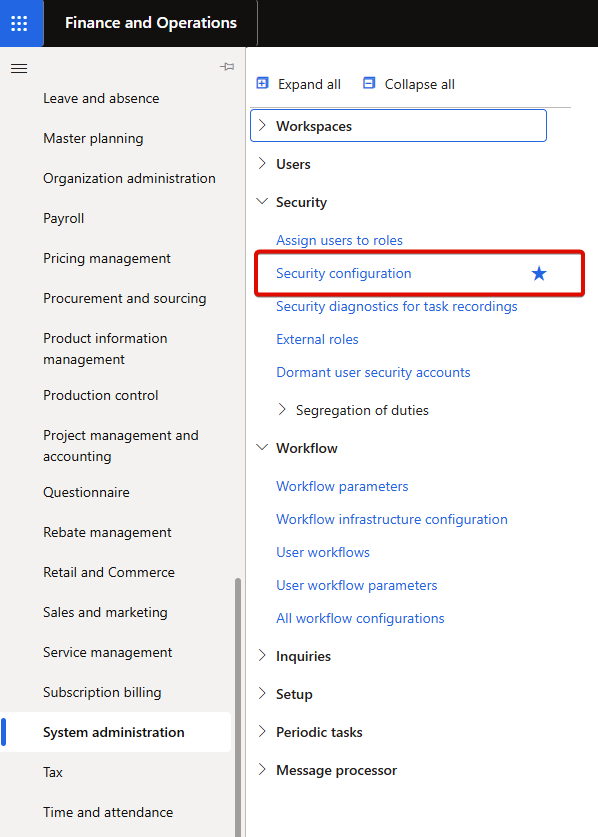
Go to System administrator >> Security >> Security configuration

Select the desired role and click Permissions.


All role permissions are listed.


Proceed with the security extraction by right-clicking any column header and selecting Export all rows.

The extracted user access data will appear as shown below.

This process must be repeated for all roles, and the resulting files should be consolidated. Once completed, all user access information will be available.

Security User Role Assignment Extractions

Next extraction is "user & security role assignments". Go to Data management workspace and create an export project that has Security user role association entity.

Run the project and extract the data.


Extracted document looks like as below:

As a result, all security role permissions, along with user and role assignments, are now prepared and available.

Segregation of Duties Framework

GRC Guardian enables the creation of a custom Segregation of Duties (SOD) framework, designed efficiently during a brief meeting. These rules define which combinations of business activities are incompatible and should not be assigned to the same user.

The identified conflicts collectively form the Segregation of Duties (SOD) framework, also referred to as the SOD ruleset.

Navigate to RSM GRC Guardian that is part of RSM’s extensive portfolio of digital solutions in RSM's Automation on Demand platform.


Select the relevant business processes (e.g., Purchase to Pay, Record to Report, Order to Cash) for SOD risk analysis.

Choose the RSM industry best-practice risk levels that will be subject to risk analysis.

Generate a working file by clicking Export to excel.


Once exported, the Excel file can be customized further by adding new rules, modifying rule definitions, or adjusting risk ratings. The goal is to create a fully tailored SOD rule list.

Technical Mapping

Once the custom SOD rule list is finalized, the next step is to educate GRC Guardian. This involves what "Create or change vendor master records" and "Vendor invoice entry/Registration" are. This is called Technical Security Modeling. This process, known as Technical Security Modeling, is entirely customized and typically based on insights gathered during a brief interview.

GRC Guardian automatically generates a technical mapping based on selected business processes. The content of technical mapping is independent of the risk ratings.

The generated technical mapping can be modified and re-imported into GRC Guardian to include customized security objects, ensuring the mapping aligns with specific business requirements.

Detecting and Analyzing SOD Violations with GRC Guardian

GRC Guardian includes an algorithm for detecting SOD conflicts. Administrators can utilize this feature to identify violations and support compliance with regulatory standards such as SOX.

Conflict Resolution: D365FO provides workflows and configuration options to address identified conflicts, including modifying security roles and distributing responsibilities across multiple users.

GRC Guardian offers two types of analysis: SOD risk analysis and Sensitive Access (SA) analysis.

When the risk analysis is run, three types of documents are generated:

▶️ Raw risk analysis data in excel format


▶️ A summary that can be modified in power point format

▶️ A dashboard in POWER BI format


Each document gives insights about

  • Overall Executive Summary: This section provides a high-level overview of the SOD and SA analysis performed. It includes the total number of roles, total number of users, and total number of SOD rules used in the analysis. The remainder of the page highlights the findings, such as roles and users with violations.
  • Internal role SOD risks: This page provides an overview of SOD analysis within roles. In other words, inherited role violations are displayed here. 
  • User SOD Risks: This page provides an overview of SOD analysis from the user perspective. It includes the number of users with SOD violations, details of violated SOD rules, impacted business processes, the number of SOD violations per user, and the distribution of users by role.
  • Role & User SA Analysis Overview: This page provides an overview of SA analysis, including SA conflicts. Additionally, it details violations by business processes, risk rankings, the number of roles with SA violations, the number of SA violations by role, the number of users with SA violations, the number of SA violations by user, the number of roles by user, and the number of users by role.

Summary and insights

RSM’s GRC Guardian Power App simplifies Segregation of Duties (SOD) risk analysis in Dynamics 365 Finance and Operations (D365FO). As a managed service, it is highly affordable, eliminating the need for additional licensing. Its customizable SOD frameworks, advanced technical mapping, and automated risk detection ensure compliance with standards like SOX. The tool can be configured efficiently after just a few short meetings—one to define SOD rules and another to validate the technical mapping. With actionable insights and streamlined implementation, GRC Guardian is a valuable solution for managing application security and mitigating risks. Stay tuned for the next article, where we explore SOD risk analysis using Fastpath.

Understanding Telemetry Pricing for Dynamics 365 Finance & Operations (D365FO)

UNDERSTANDING TELEMETRY PRICING FOR DYNAMICS 365 FINANCE AND OPERATIONS (D365FO) CONTENT Introduction D365FO Telemetry Capabilities Key Pric...