Showing posts with label digitaltransformation. Show all posts

Saturday, November 9, 2024

Configuring Dynamics 365 Finance and Operations Business Events


CONFIGURING DYNAMICS 365 FINANCE AND OPERATIONS BUSINESS EVENTS

CONTENT

Introduction
Business event catalog (D365FO)
Endpoint types
End-to-end automation solution (Power Automate)
Conclusion

INTRODUCTION

In the first article of this series, we explored the fundamentals of business events in Dynamics 365 Finance and Operations (D365FO), including event types, the business event catalog, and how to leverage Power Automate endpoints. Now, we will dive deeper into a practical scenario where we configure a business event using the Finance and Operations connector in Power Automate to automate workflows.

This article will guide you through creating a new flow in Power Automate, subscribing to a business event via the D365FO connector, and setting up an automated email notification. By harnessing the power of business events and the FinOps connector, you can streamline communication and automate notifications for key business processes, eliminating manual follow-ups and enhancing operational efficiency.

We will cover:

  • How to create a new flow in Power Automate
  • How to subscribe to a business event via the FinOps connector
  • How to set up an automated email trigger when a business event is raised

Let’s get started on configuring business events to automate actions and bring real-time notifications into your business processes.

BUSINESS EVENT CATALOG

This is a catalog that contains important business activities like new vendor application request approval, purchase requisition status change, vendor invoice posting, vendor payment posting, etc. 

Complete catalog content can be seen under System administration >> Setup >> Business events >> Business events catalog.

This page shows the list of actions that can be subject to external system notifications.


Posted/approved document triggers a business event that notifies external system(s).


One of the fundamental components of business events in Dynamics 365 Finance and Operations (D365FO) is the endpoint. An endpoint serves as a connection point that enables D365FO to interact with external systems, services, or applications when a business event is triggered. It represents the external destination or communication channel where event data is sent.

ENDPOINT TYPES

Endpoints define the target location for event notifications, facilitating integration and automated responses in connected systems. Setting up endpoints is a crucial first step in the configuration process.

System administration >> Setup >> Business events >> Business events catalog

Switch to endpoints tab, click on +New


When you add a new endpoint in Dynamics 365 Finance and Operations (D365FO), it is automatically synchronized with Dataverse. Additionally, endpoints can be created directly in Dataverse using the ServiceEndpoint table. If the service endpoint is set up through a subscription to a D365FO event, it will be available in D365FO and can be accessed from the Endpoints tab on the Business Events page. This synchronization process supports the following endpoint types:

  • Azure Service Bus Queue
  • Azure Service Bus Topic
  • Azure Event Grid
  • Azure Event Hub

Power Automate Endpoints: The Microsoft Power Automate endpoint type isn't made available for setup directly in finance and operations apps. This endpoint type is used for subscriptions that are created and sent directly from a flow in Power Automate.

The endpoint is created on the Endpoints tab of the Business events page in finance and operations apps when you subscribe to a finance and operations apps business event or data event in Power Automate.

In this article, we’ll set up a Power Automate endpoint.

Dataverse Endpoints: The Dataverse endpoint type also isn't available for manual setup in finance and operations apps. The endpoint is created when a plug-in or an SDK step is registered on a finance and operations apps business event or data event in Dataverse. When the step is registered, it becomes visible as an endpoint in the list on the Endpoints tab of the Business events page in finance and operations apps.

END-TO-END AUTOMATION SOLUTION

Scenario: An email is automatically sent when a purchase order is confirmed.

Solution components

  • Business event selection: In our example, we will use purchase order confirmation.
  • Business event schema: In Dynamics 365 Finance and Operations (D365FO), a business event schema is a structured data model that defines the format and content of a business event message.
  • Power automation platform: We will use a power automation endpoint in this scenario.
  • OData Query Language: The development language used for querying data in this context is OData (Open Data Protocol), specifically using OData Query Language. OData Query Language is used to filter and manipulate data from REST APIs, especially in services like Dynamics 365 Finance and Operations and Microsoft Dataverse. In Power Automate and D365FO integration scenarios, the queries often adhere to the OData v4 standard, which is widely used for accessing and interacting with data in RESTful APIs.

Configuration

We will start with downloading business event schema in D365FO.

Go to System administration >> Setup >> Business events >> Business events catalog

Find the purchase order confirmation event and download the schema.


Downloaded file looks like below.


I asked ChatGPT to format it nicely for your information.


Next step is power platform configurations.

Go to make.powerautomate.com

Click on +Create then 'Automated cloud flow'.


Enter a flow name and select the trigger.

Flow name: POconfirmation_BusinessEventDemo

Trigger: Fin & Ops Apps (Dynamics 365)


Click on Create.

Now, system automatically adds business event element.

Select your D365FO environment.

Select category of the business event. You can see that it should be 'Purchase orders' according to business event catalog.

Select the business event. We are selecting 'Purchase order confirmed' here.

Select legal entity.
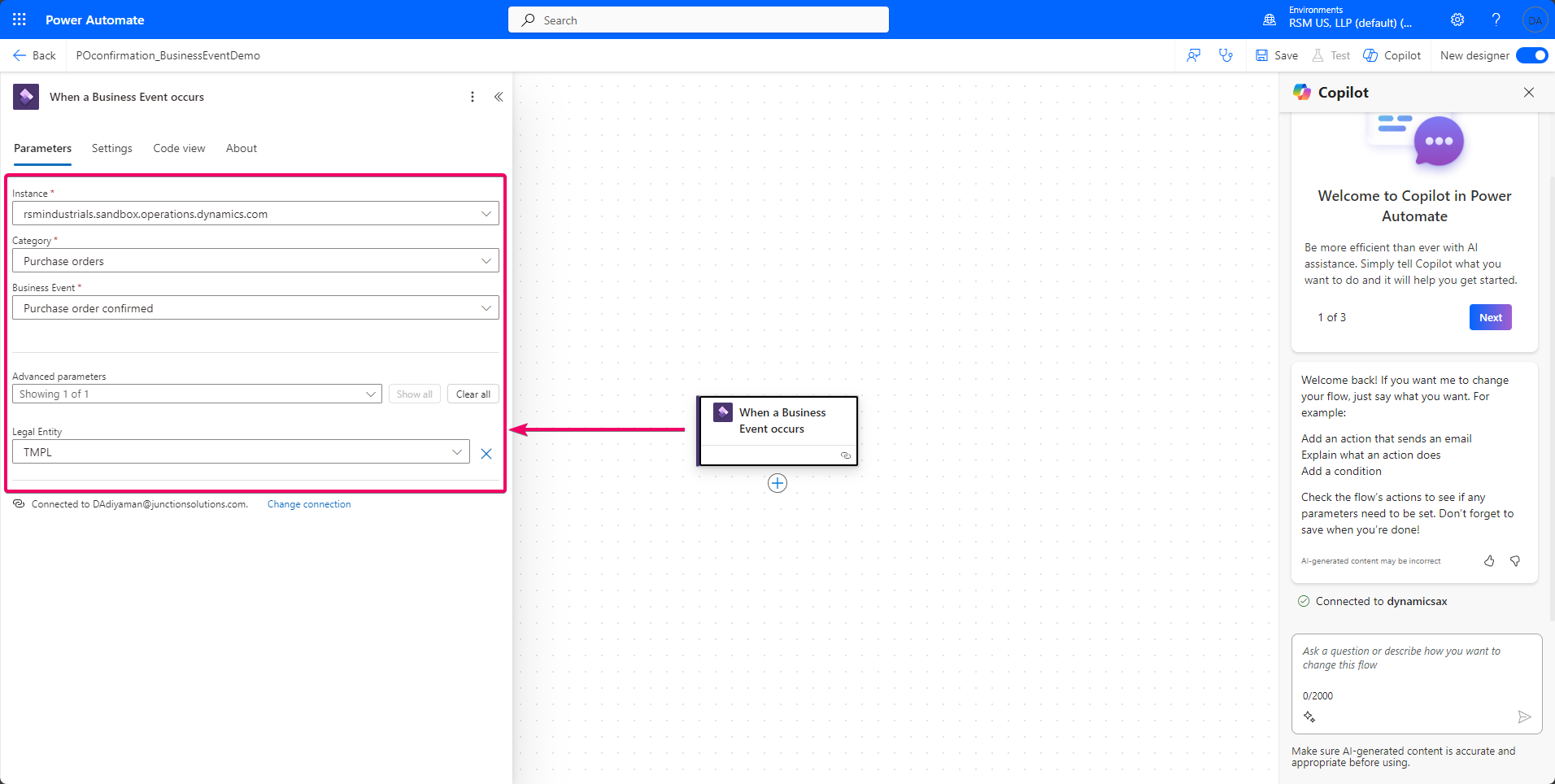

OK, we are done with this business event element.

Click on + to add a new flow action. 

Find Parse JSON and add it to the flow.


Configure the Parse action.

Click on Content's lightning icon.


then select Body.


Click on schema generation from the sample payload.


Paste business event schema into the screen.


Click on Done. Note that Power Platform automatically creates the schema on the left side of the screen.


This step captures Dynamics 365 Finance and Operations' response and translates it to a readable message in Power Platform.

Next step is about finding the vendor that comes from the message. We will use data entities for that purpose.

Click on + to add a new flow action.


Search for 'Fin & Ops Apps (Dynamics 365) ' and select 'Lists items present in table' for data entities.


Fill in the required fields.


Select the connected D365FO environment.

Select 'Vendors' entity.

Add a filter and use the below query.


As result, this action item should look like below.


Next step is about sending purchase order as email. We will use 'Send email' operation for that purpose.

Click on + to add a new flow action.


Let's do the configuration of email action.


The flow is ready to be tested.


Demo

Let's confirm a purchase order in the company where we indicated in the automation.

Confirming purchase order: Navigate to the purchase order and proceed to confirm it, which will trigger the automation process.


Reviewing Power Automate Flow: Open the Power Automate interface to observe the flow in action. Here, we can view historical runs and monitor the progress of the current execution.


Once the flow is completed, the status will update to 'Succeeded', confirming a successful run. 

Receiving email: As configured, the system sends an automated email upon completion of the purchase order confirmation. The email serves as a notification to the stakeholders.

Reading email: Open the received email to verify its contents. The details should reflect the expected purchase order information, indicating that the automation is working correctly.


CONCLUSION

In summary, this configuration demonstrates how to effectively leverage Dynamics 365 Finance and Operations business events in conjunction with Power Automate to automate standard processes. By integrating these tools, you can enhance the responsiveness of business workflows, reduce manual interventions, and ensure timely notifications for critical actions, such as purchase order confirmations. This solution illustrates a practical approach to optimizing operational processes using existing platform capabilities.

Sunday, January 30, 2022

Platform Unification - Dynamics 365 & Power Apps - PART 1

CONTENT

Introduction
Dataverse
Dual-Write

INTRODUCTION

In the beginning, there were just installations, solutions were being installed locally on the company's hardware and servers and this was managed by the company's IT team. As a result of fast-evolving technologies, solutions are on the cloud now.

In the traditional approach, one installation is expected to fill all business GAPs. In cloud solutions, there are multiple applications that fill all the GAPs perfectly for Procure to Pay and Order to Cash (or Prospect to Cash) processes.

This article series provides several solution ideas by using Microsoft cloud business applications.

DATAVERSE

Microsoft is continuously enhancing the platform and services that support Finance and Operations apps with new capabilities to enable businesses everywhere to accelerate their digital transformation. The key driver for all of the new, core capabilities is to increase productivity and return on investment.

The Finance and Operations cross-app capabilities can be categorized as follows:
  • Power Platform features are capabilities that bring FO apps closer to Microsoft Power Platform. Environment provisioning, authorization and authentication, run-time events, and developer tools are areas that will enable new capabilities. It is a challenge to make FO data useable in other 365 business applications because all other applications are built on top of data verse whereas the database is Azure SQL database in FO. To overcome this challenge, Microsoft now unifies CE (CRM) Dataverse and FO (ERP) Azure SQL solutions into one fully integrated cloud service.
  • Cross-app features provide ease of use to all users of FO apps.
  • Data and process integration features provide enhanced data exchange experiences between Finance and Operations apps, Microsoft Dataverse, and customer engagement apps in Dynamics 365.

Dataverse is the idea of having a database system that is easy to use across Power Platform applications.
  • It gives you the platform to start leveraging the power platform tools around it. 
  • It's a cloud-based, low-code data service and app platform. 
  • Users don't need to switch browsers or switch applications from one to another.

Dataverse structures a variety of data and business logic to support interconnected applications and processes in a secure and compliant manner. 
With dataverse;
  • Power apps can be embedded in FO
  • Model-driven apps can be embedded in FO
  • FO pages can be embedded in Unified Interface apps outside FO

Integration scenarios in this article series are focused on ERP and CRM collaboration. Depending on the business requirement, there are several ways to integrate ERP (Dynamics 365 Supply Chain Management aka Dynamics 365 Finance and Operations) and CRM (Power Apps - CE):
  • Dual-write
  • Virtual entities
  • Logic app
  • Data integrator


DUAL - WRITE

Since the integration happens between databases, not applications, endpoints will be mentioned as FO and Dataverse. Dual write creates the same data in both SQL database and dataverse at the same time. That's why it doesn't matter where we are creating/maintaining/modifying quotes, orders, or customers. Data lives in both applications depending on the setup of dual writes. In another saying, dual-write is a synchronous integration that has a direct connection between the two systems in near-real-time.

Flowing data between environments helps to provide segregation of duties that is the operational reality of businesses. For example, Sales rep creates an account in the sales app, the account needs to fly into ERP as a customer so that SO can be created and invoiced. Data sharing (via dual-write) is required because of the business requirement. Or imagine a Power BI solution that requires native entities. For example, Power BI consumes Datalake data that comes from Dataverse via dual-write. In this case, data sharing is required due to a technical requirement.

You can set up a dual-write connection between a Finance and Operations environment and a Dataverse environment.
  • A Finance and Operations environment provides the underlying platform for Finance and Operations apps (for example, Microsoft Dynamics 365 Finance, Dynamics 365 Supply Chain Management, Dynamics 365 Commerce, and Dynamics 365 Human Resources).
  • A Dataverse environment provides the underlying platform for customer engagement apps (Dynamics 365 Sales, Dynamics 365 Customer Service, Dynamics 365 column Service, Dynamics 365 Marketing, and Dynamics 365 Project Service Automation).

The setup mechanism varies, depending on your subscription and the environment:
  • For new instances of Finance and Operations apps, the setup of a dual-write connection begins in Microsoft Dynamics Lifecycle Services (LCS). If you have a license for Microsoft Power Platform, you will get a new Dataverse environment if your tenant doesn't have one.
  • For existing instances Finance and Operations apps, the setup of a dual-write connection begins in the Finance and Operations environment.
  • Dynamics 365 applications use Dataverse capacity and features to store and secure data. Power Apps users who have a Power Apps license may use custom applications to access (that is, create, read, update or delete) any Dynamics 365 non-restricted table in the Dataverse. However, Power Apps users and devices that need to create, update, or delete data in Dynamics 365 restricted tables must be properly licensed for Dynamics 365.

Features
  • Any (create/update/deleteCRUD operation in FO results in writes to dataverse and vice-versa
  • Bi-directional(2-ways)
  • Alert friendly
  • Extendable, ISV solution's entities or custom entities can be included
  • There is no extra training is required for users since this is an out-of-the-box configuration and data is flying around in the back end
  • Used to replicate master data (customer, contact, etc.) and business documents (quote, sales order, invoice, etc.) between environments.
  • Integration can be paused and resumed for a specific entity


Considerations
  • FO and dataverse must be in the same instance and on the same tenant
  • For minimum latency, FO and CDS instances should be in the same region
  • FO instance cannot be linked to multiple dataverse instances
  • Dual write works only in between FO and Dataverse. If you need similar functionally between FO and a none-Dataverse environment then you may want to use Logic App
  • Dual write doesn't support "Cross company data sharing"
  • Use it only when it is required

If there is an active FO instance that you want to start using dual write, migrate data to dataverse before running Dual-Write. You can skip the initial synchronization if you don't have to sync data between the two environments. Copying preexisting data from FO to dataverse can be done in 2 different ways.
  • If your data is low volume then use initial write to copy reference and dependent tables from the Finance and Operations app to Dataverse.
  • If your data is too high volume, then consider migrating data before enabling Dual-Write.
  • or both methods can be used respectively. Imagine Customers table in a Finance and Operations app, and the Account table in Dataverse:
    • Use initial write to copy reference and dependent tables, such as Company, Customer groups, and Terms of payment, from the Finance and Operations app to Dataverse.
    • Use the Data management framework to export data from the Finance and Operations app in comma-separated values (CSV) format. For example, set up an export project in Data management to export customers from each company by using the DataAreaId field in the Finance and Operations app. This process is a one-time manual process.
    • Use Azure Blob Storage to store the CSV files for lookup and transformation. Upload the CSV file for your Finance and Operations customers into Azure Blob Storage.
    • Use Azure Data Factory to push data into Dataverse.


If you are implementing a brand new system, data can be loaded into one side through data migration and then synced to the other side through the initial synchronization.

After go-live, any data change in Finance and Operations apps causes writes to Dataverse, and any data change in Dataverse causes writes to Finance and Operations apps. This automated data flow provides an integrated user experience across the apps.

Sample implementation scenarios will be discussed in further sections.

to be continued ... 

Understanding Telemetry Pricing for Dynamics 365 Finance & Operations (D365FO)

UNDERSTANDING TELEMETRY PRICING FOR DYNAMICS 365 FINANCE AND OPERATIONS (D365FO) CONTENT Introduction D365FO Telemetry Capabilities Key Pric...