CONFIGURING DYNAMICS 365 FINANCE AND OPERATIONS BUSINESS EVENTS
CONTENT Introduction Business event catalog (D365FO) Endpoint types End-to-end automation solution (Power Automate) Conclusion |
INTRODUCTION
In the first article of this series, we explored the fundamentals of business events in Dynamics 365 Finance and Operations (D365FO), including event types, the business event catalog, and how to leverage Power Automate endpoints. Now, we will dive deeper into a practical scenario where we configure a business event using the Finance and Operations connector in Power Automate to automate workflows.
This article will guide you through creating a new flow in Power Automate, subscribing to a business event via the D365FO connector, and setting up an automated email notification. By harnessing the power of business events and the FinOps connector, you can streamline communication and automate notifications for key business processes, eliminating manual follow-ups and enhancing operational efficiency.
We will cover:
- How to create a new flow in Power Automate
- How to subscribe to a business event via the FinOps connector
- How to set up an automated email trigger when a business event is raised
Let’s get started on configuring business events to automate actions and bring real-time notifications into your business processes.
BUSINESS EVENT CATALOG
This is a catalog that contains important business activities like new vendor application request approval, purchase requisition status change, vendor invoice posting, vendor payment posting, etc.
Complete catalog content can be seen under System administration >> Setup >> Business events >> Business events catalog.
This page shows the list of actions that can be subject to external system notifications.

Posted/approved document triggers a business event that notifies external system(s).

ENDPOINT TYPES
Endpoints define the target location for event notifications, facilitating integration and automated responses in connected systems. Setting up endpoints is a crucial first step in the configuration process.
System administration >> Setup >> Business events >> Business events catalog
Switch to endpoints tab, click on +New

When you add a new endpoint in Dynamics 365 Finance and Operations (D365FO), it is automatically synchronized with Dataverse. Additionally, endpoints can be created directly in Dataverse using the ServiceEndpoint table. If the service endpoint is set up through a subscription to a D365FO event, it will be available in D365FO and can be accessed from the Endpoints tab on the Business Events page. This synchronization process supports the following endpoint types:
- Azure Service Bus Queue
- Azure Service Bus Topic
- Azure Event Grid
- Azure Event Hub
Power Automate Endpoints: The Microsoft Power Automate endpoint type isn't made available for setup directly in finance and operations apps. This endpoint type is used for subscriptions that are created and sent directly from a flow in Power Automate.
The endpoint is created on the Endpoints tab of the Business events page in finance and operations apps when you subscribe to a finance and operations apps business event or data event in Power Automate.
In this article, we’ll set up a Power Automate endpoint.
Dataverse Endpoints: The Dataverse endpoint type also isn't available for manual setup in finance and operations apps. The endpoint is created when a plug-in or an SDK step is registered on a finance and operations apps business event or data event in Dataverse. When the step is registered, it becomes visible as an endpoint in the list on the Endpoints tab of the Business events page in finance and operations apps.
END-TO-END AUTOMATION SOLUTION
Scenario: An email is automatically sent when a purchase order is confirmed.
Solution components
- Business event selection: In our example, we will use purchase order confirmation.
- Business event schema: In Dynamics 365 Finance and Operations (D365FO), a business event schema is a structured data model that defines the format and content of a business event message.
- Power automation platform: We will use a power automation endpoint in this scenario.
- OData Query Language: The development language used for querying data in this context is OData (Open Data Protocol), specifically using OData Query Language. OData Query Language is used to filter and manipulate data from REST APIs, especially in services like Dynamics 365 Finance and Operations and Microsoft Dataverse. In Power Automate and D365FO integration scenarios, the queries often adhere to the OData v4 standard, which is widely used for accessing and interacting with data in RESTful APIs.
Configuration
We will start with downloading business event schema in D365FO.
Go to System administration >> Setup >> Business events >> Business events catalog
Find the purchase order confirmation event and download the schema.


I asked ChatGPT to format it nicely for your information.

Next step is power platform configurations.
Go to make.powerautomate.com
Click on +Create then 'Automated cloud flow'.

Enter a flow name and select the trigger.
Flow name: POconfirmation_BusinessEventDemo
Trigger: Fin & Ops Apps (Dynamics 365)

Click on Create.
Now, system automatically adds business event element.
Select your D365FO environment.
Select category of the business event. You can see that it should be 'Purchase orders' according to business event catalog.
Select the business event. We are selecting 'Purchase order confirmed' here.
Select legal entity.
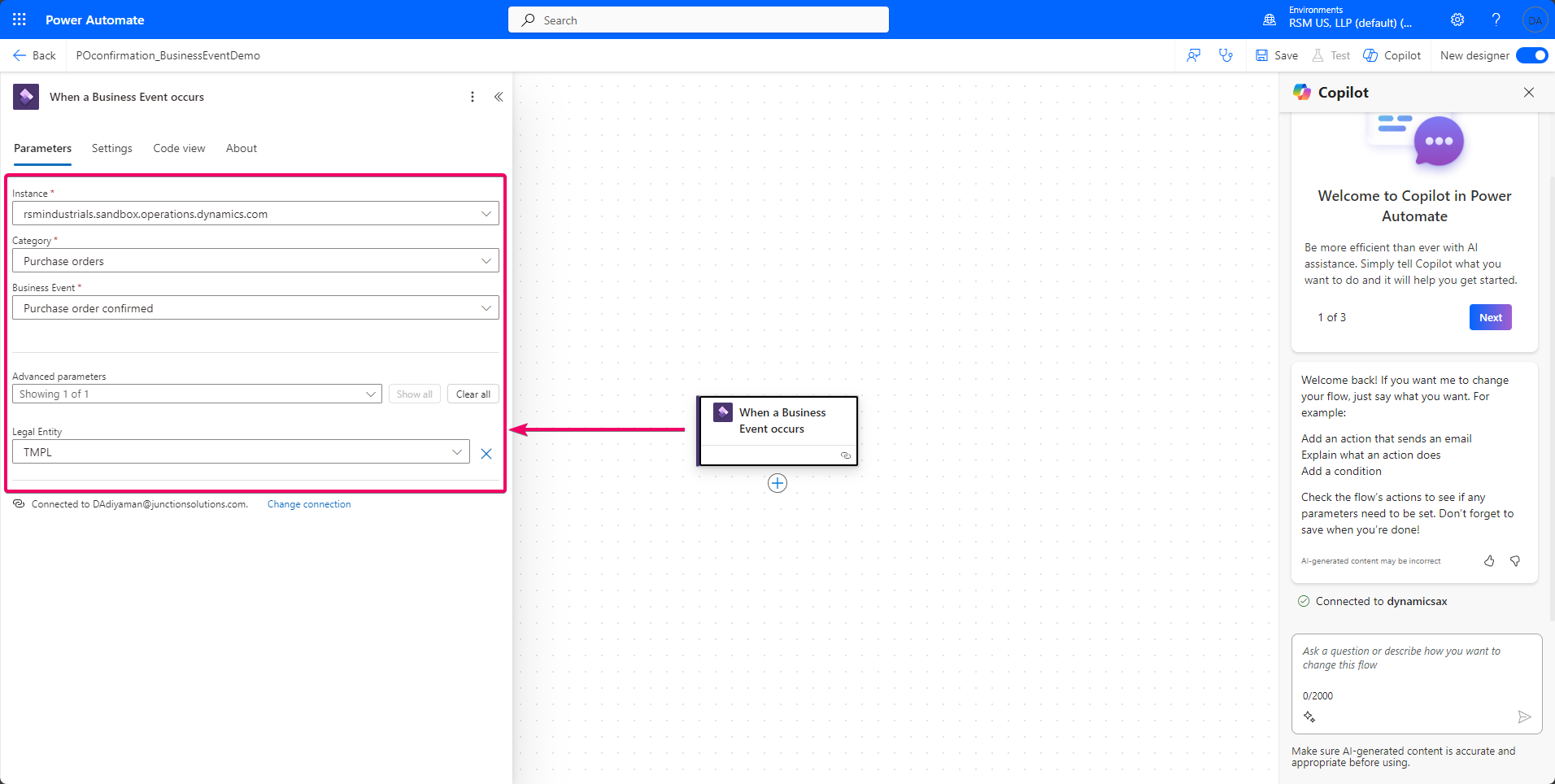
OK, we are done with this business event element.
Click on + to add a new flow action.

Find Parse JSON and add it to the flow.

Configure the Parse action.
Click on Content's lightning icon.

then select Body.


Click on schema generation from the sample payload.

Paste business event schema into the screen.


Click on Done. Note that Power Platform automatically creates the schema on the left side of the screen.

This step captures Dynamics 365 Finance and Operations' response and translates it to a readable message in Power Platform.
Next step is about finding the vendor that comes from the message. We will use data entities for that purpose.
Click on + to add a new flow action.

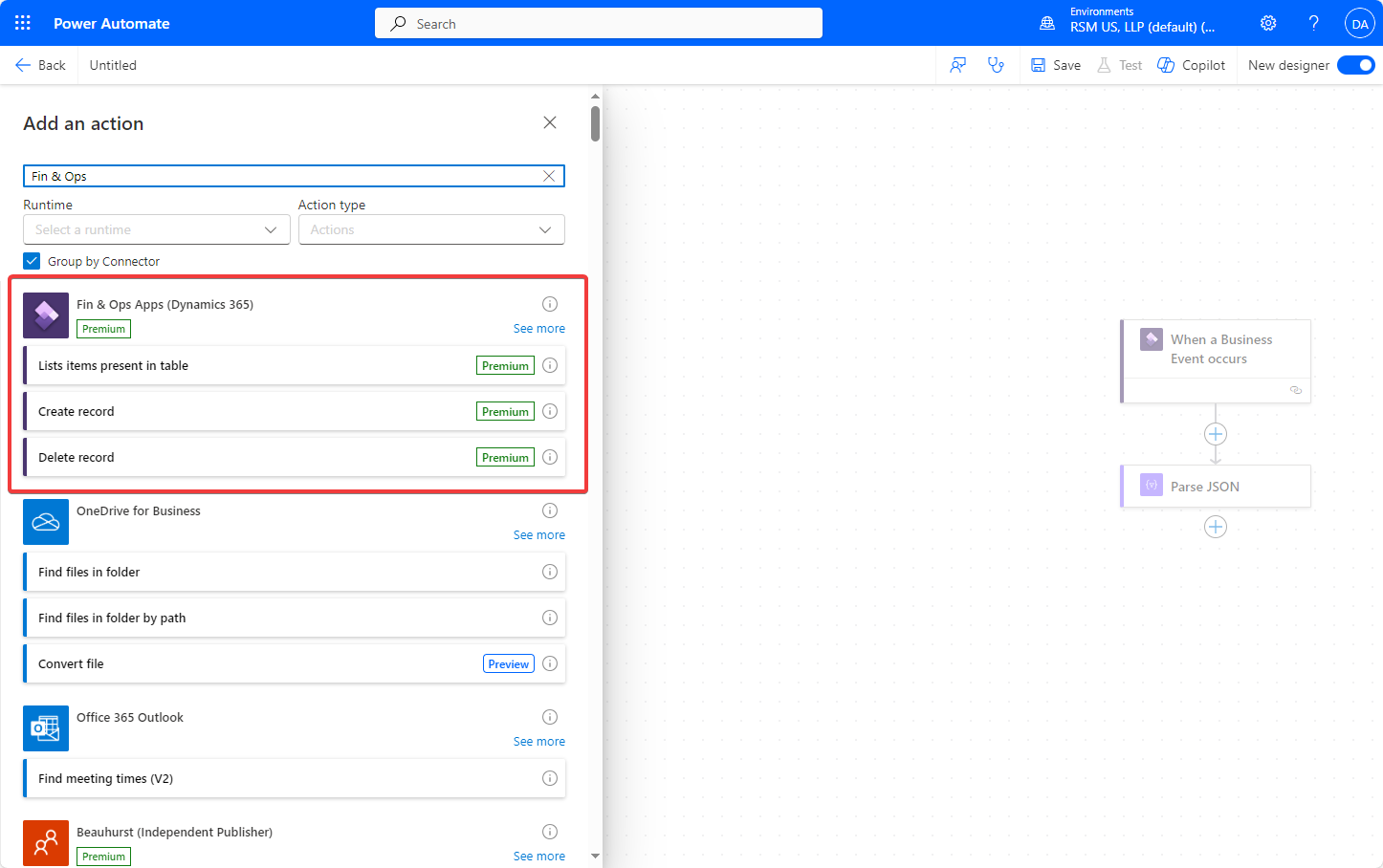
Search for 'Fin & Ops Apps (Dynamics 365) ' and select 'Lists items present in table' for data entities.


Select 'Vendors' entity.
Add a filter and use the below query.

As result, this action item should look like below.

Click on + to add a new flow action.


The flow is ready to be tested.

Demo
Let's confirm a purchase order in the company where we indicated in the automation.
Confirming purchase order: Navigate to the purchase order and proceed to confirm it, which will trigger the automation process.


Reviewing Power Automate Flow: Open the Power Automate interface to observe the flow in action. Here, we can view historical runs and monitor the progress of the current execution.


Receiving email: As configured, the system sends an automated email upon completion of the purchase order confirmation. The email serves as a notification to the stakeholders.

Reading email: Open the received email to verify its contents. The details should reflect the expected purchase order information, indicating that the automation is working correctly.

CONCLUSION
In summary, this configuration demonstrates how to effectively leverage Dynamics 365 Finance and Operations business events in conjunction with Power Automate to automate standard processes. By integrating these tools, you can enhance the responsiveness of business workflows, reduce manual interventions, and ensure timely notifications for critical actions, such as purchase order confirmations. This solution illustrates a practical approach to optimizing operational processes using existing platform capabilities.