Showing posts with label UserOnboarding. Show all posts

Sunday, June 16, 2024

User Onboarding in Dynamics 365 Finance and Operations for SOX Compliance - PART 2 - Solution configuration


USER ONBOARDING IN DYNAMICS 365 FINANCE AND OPERATIONS FOR SOX COMPLIANCE - PART 2 - SOLUTION CONFIGURATION

This article series explains how to streamline the user onboarding process in Dynamics 365 Finance and Operations, providing a unique implementation resource. The series is divided into two parts as follows:

PART 1: Solution components

PART 2: Solution configuration

Let's get started with PART 2.

Introduction

Ensuring SOX compliance during user onboarding in Dynamics 365 Finance and Operations (D365FO) is crucial for maintaining organizational integrity and security. This article explains how to configure the user onboarding process step-by-step, from creating a worker record to automatically assigning security roles through automated workflows.

After creating a worker record in the Human Resources (HR) module as part of the onboarding checklist, the HR department requests the creation of a D365FO user to grant the new hire access to Dynamics 365. HR attaches the user's role-based security roles to their user creation request. At the end of the approval process, the user is automatically created with the desired role-based security role(s).


Workflow configuration

This section explains how to configure user workflows.

Go to System administration >> Workflow >> User workflows.


There are currently two workflow configurations in my instance:

  • User request workflow (onboarding). This workflow is used for onboarding users.
  • Inactivate user request workflow (offboarding). This workflow is used for offboarding users.

Let’s take a closer look at the User request workflow configuration.


My configuration includes two workflow objects for demonstration purposes:

  • Automated provision user: This step creates the D365FO user automatically. (This is an automated task).
  • Notify new user: This step notifies the user. (This is an automated task).

There is no manual approval process included in this demo flow. You can include manual approval steps (Approve user request) according to your scenario.

In Dynamics 365 Finance and Operations (F&O), workflow tasks can be manual or automated:

  • Manual tasks require users to complete actions, such as reviewing receipts or calling a manager. For example, an expense report workflow might include manual tasks. There is no manual task in my scenario for easy demonstration purpose.
  • Automated tasks are units of work that the system performs without human interaction. For example, a sales order workflow might include automated tasks, such as performing a credit check or creating a customer record or creating user or notifying user.

Worker creation

This step is where the new user's worker record is created.

Navigate to Worker Creation.

Go to Human resources >> Workers >> Employees.

Create the new user.

Click on Complete to finalize worker creation.
Note that the status is now Completed.
Click on Worker action history button.
Note that the status is Completed.
Worker actions can be seen under “All worker actions” form.
Human resources >> Workers >> Actions >> All worker actions.

Worker user request

This step is where the new user's D365FO access is requested.
Navigate to Worker User Requests.
Go to Human resources >> Workers >> Worker user requests


Click on Add worker user. 


Select the worker’s name in the worker field.

Select the user type in the user type field.

Enter the user’s email in the email field.

Type the user’s username in the name field.

Select the user’s security roles in the User’s roles section. 
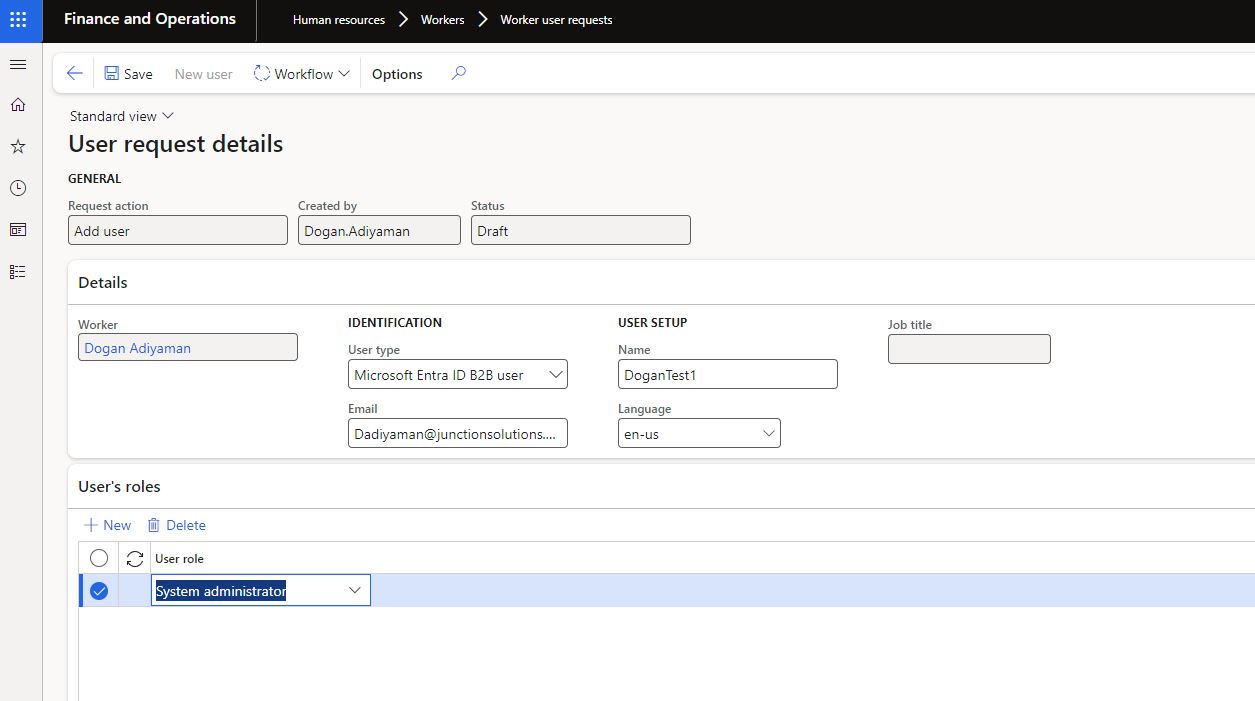

Submit the request.

Click on Submit.

Submitted D365 user creation request goes to the approval process.

After the approval, user creation request status becomes “Completed”. 

Let’s go to user list and see the new creation user.

Before


After

Note that new user is now useable.


In conclusion, this two-part series has provided a comprehensive guide to streamlining the user onboarding process in Dynamics 365 Finance and Operations, ensuring compliance with SOX regulations. By following the detailed steps outlined in this article, organizations can efficiently create and configure user records, automate approval workflows, and assign necessary security roles. The configuration and demonstration in Part 2 showcase the practical implementation of these processes, highlighting the importance of automated tasks and efficient workflow management. With these insights, businesses can enhance their onboarding procedures, ensuring new hires have timely and secure access to necessary resources within Dynamics 365 F&O.

Tuesday, May 21, 2024

User Onboarding in Dynamics 365 Finance and Operations for SOX Compliance - PART 1 - Solution components

USER ONBOARDING IN DYNAMICS 365 FINANCE AND OPERATIONS FOR SOX COMPLIANCE - PART1 - SOLUTION COMPONENTS

This article series explains how to streamline the user onboarding process in Dynamics 365 Finance and Operations, providing a unique implementation resource. The series is divided into two parts as follows:

PART 1: Solution components

PART 2: Solution configuration

Let's get started with PART 1. 

CONTENT

Effective user onboarding in Dynamics 365 Finance and Operations
Implementing effective user onboarding in Dynamics 365 Finance and Operations

EFFECTIVE USER ONBOARDING IN DYNAMICS 365 FINANCE AND OPERATIONS FOR SOX COMPLIANCE

User onboarding is critical in SOX compliance because it establishes the foundation for secure and compliant access to financial systems, specifically Dynamics 365 Finance and Operations (D365FO). Here are the key reasons why user onboarding processes are essential: 

1. Controlled Access to Financial Data
  • Approval and Authorization: User onboarding ensures that new users are properly reviewed and approved before they are granted access to the system. This prevents unauthorized individuals from accessing sensitive financial information. Dynamics 365 Finance and Operations (D365FO) is particularly well-suited for this task due to its robust workflow functionality. The workflow feature in D365FO automates the approval process, ensuring that each step is documented, consistent, and compliant with SOX requirements. This built-in functionality helps streamline the approval process, making it efficient and reliable.
  • Access Based on Role: Onboarding involves assigning roles and permissions that align with the user's job responsibilities. In D365FO, role-based access control is used to ensure users only have access to the data and functions necessary for their role, minimizing the risk of data breaches. D365FO allows for detailed role definitions and easy management of user permissions.

2. Ensuring Compliance with SOX Requirements
  • Documentation of Approvals: SOX compliance requires that all access to financial systems be properly documented and approved. Dynamics 365 Finance and Operations provides a Workflow History screen that is ideal for this purpose. This screen maintains a detailed log of all workflow activities, showing who approved access, when it was approved, and the actions taken. This comprehensive documentation is crucial during audits to demonstrate compliance and ensure that all access approvals are properly recorded.
  • Policy Adherence: Onboarding processes ensure that new users are informed about and comply with company policies and regulatory requirements, including those related to SOX. D365FO can be configured to include policy acknowledgment as part of the onboarding workflow, ensuring that users confirm their understanding of compliance requirements before gaining access.

3. Risk Mitigation
  • Minimizing Security Risks: By having a structured onboarding process, companies can ensure that new users are educated about security protocols and compliance requirements, reducing the risk of accidental or intentional misuse of financial data. D365FO supports security training and awareness programs by integrating training modules and tracking completion as part of the onboarding workflow.
  • Verification of User Identity: Onboarding typically includes verifying the identity of new users, which helps in preventing fraud and ensuring that only legitimate users gain access to the system. D365FO can integrate with identity management solutions to verify user identities during the onboarding process.

4. Audit and Accountability
  • Trackable Processes: A formal onboarding process creates a clear audit trail showing who was given access, who approved it, and what level of access was granted. The Workflow History screen in Dynamics 365 Finance and Operations is particularly valuable for this purpose. It provides a detailed, transparent, and traceable record of all workflow activities, including approvals, changes, and actions taken. This ensures that during SOX audits, you can demonstrate that proper controls are in place and that all access permissions have been appropriately managed and documented.
  • Regular Review: As part of the onboarding process, it is essential to periodically review and update user access to ensure it remains appropriate, further supporting SOX compliance. D365FO can automate reminders and workflows for periodic access reviews, ensuring continuous compliance with access policies.

IMPLEMENTING EFFECTIVE USER ONBOARDING IN DYNAMICS 365 FINANCE AND OPERATIONS

To ensure that your user onboarding process supports SOX compliance in Dynamics 365 Finance and Operations (D365FO), it is crucial to implement a structured and comprehensive approach. Here are detailed steps to achieve this:

1. Define Clear Onboarding Procedures
  • Identify Approval Steps: Establish detailed procedures for onboarding new users, focusing on identifying the approval steps that will be configured in D365FO. This includes specifying who needs to approve new user access, what criteria must be met for approval, and how these approvals will be documented.
  • Role Assignment: Clearly define user roles and responsibilities. Ensure that each role has specific permissions aligned with job functions, minimizing unnecessary access to sensitive data.
  • Compliance Checkpoints: Integrate compliance checkpoints within the onboarding process to ensure that each step adheres to SOX requirements.

2. Automate the Process
  • Workflow Configuration: Use D365FO’s powerful workflow capabilities to automate the approval and onboarding process. Configure workflows to route approval requests to the appropriate personnel, ensuring that each step is completed before access is granted.
  • Consistency and Accuracy: Automation ensures that the onboarding process is consistent and accurate, reducing the risk of human error. It also helps in maintaining a standardized approach to onboarding across the organization.
  • Notifications and Alerts: Set up notifications and alerts within the workflow to inform relevant stakeholders of pending approvals or required actions, ensuring timely processing of onboarding requests.

3. Maintain Comprehensive Records:
  • Workflow History Screen: Utilize the Workflow History screen in D365FO to maintain detailed records of all onboarding activities. This screen captures all relevant information, including who approved access, when it was approved, and any actions taken.
  • Audit-Ready Documentation: Ensure that all records are easily accessible and audit-ready. This includes maintaining logs of role assignments, changes in access levels, and training completions. The Workflow History screen provides a transparent and traceable record, which is crucial for SOX audits.
  • Centralized Repository: Store all onboarding documentation in a centralized repository within D365FO, ensuring that records are organized and can be easily retrieved during audits or compliance reviews.

4. Provide Training
  • System Training: Ensure new users receive thorough training on how to use D365FO effectively. This includes training on specific functionalities they will use based on their roles.
  • Compliance Training: Integrate compliance training modules within the onboarding process. These modules should cover SOX requirements, data security protocols, and company policies. D365FO can track training completion, ensuring that all users are properly educated on compliance requirements.
  • Ongoing Education: Implement ongoing education and refresher courses to keep users updated on any changes in compliance requirements or system updates. D365FO can schedule and track these training sessions, ensuring continuous user education.

5. Regular Review and Access Management
  • Periodic Access Reviews: Configure D365FO to automate periodic reviews of user access. This ensures that access rights remain appropriate and are updated as necessary based on role changes or other factors.
  • Revocation of Access: Establish procedures for promptly revoking access for users who no longer require it, such as when they change roles or leave the company. D365FO can automate the deactivation of user accounts to maintain security.
  • Monitoring and Reporting: Use D365FO’s monitoring and reporting capabilities to regularly review access logs and identify any unusual or unauthorized access patterns. This proactive approach helps in maintaining a secure and compliant environment.

By focusing on these detailed steps, your user onboarding process in Dynamics 365 Finance and Operations will be robust, ensuring compliance with SOX requirements and providing secure, regulated access to your financial systems.

Understanding Telemetry Pricing for Dynamics 365 Finance & Operations (D365FO)

UNDERSTANDING TELEMETRY PRICING FOR DYNAMICS 365 FINANCE AND OPERATIONS (D365FO) CONTENT Introduction D365FO Telemetry Capabilities Key Pric...